How To Get a QR Code for Google Review
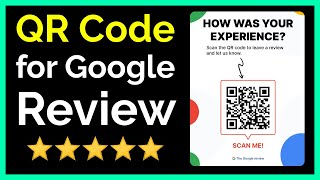
Collecting genuine reviews on Google can boost a business’s visibility, build trust, and drive more foot traffic. One of the fastest ways to encourage customers to leave a review is by presenting a QR code that links directly to the review page. When scanned, the code opens the Google review form on the user’s phone, removing the need to search for the business manually. Below is a step‑by‑step guide that shows you how to obtain a QR code for Google review, from preparing your Google Business profile to printing the code for real‑world use.
Why Use a QR Code for Google Reviews?
QR codes are simple, contact‑less, and work on any smartphone with a camera. By placing a QR code on receipts, tables, signage, or digital screens, you give customers a clear, immediate call‑to‑action. The convenience of a single tap often translates into higher response rates compared to a plain URL or a verbal request.
Prepare Your Google Business Profile
Before you can generate a QR code, you need a direct link to the review form for your business. Follow these steps to locate that link:
- Open Google Maps on a desktop browser and search for your business name.
- Click on the business’s name to open the information panel.
- Scroll down to the “Write a review” button and right‑click (or control‑click) on it.
- Select “Copy link address” to capture the URL that points straight to the review window.
Make sure the URL you copied includes the review parameter (it usually looks like https://search.google.com/local/writereview?...). This is the link that the QR code will encode.
Generate the QR Code
There are many free QR‑code generators online, but the process is essentially the same for all of them. Here’s a generic method that works with most services:
- Visit a reputable QR‑code generator website.
- Paste the Google review URL you copied into the “URL” field.
- Choose a size that fits your intended placement (typically 300 × 300 px for print).
- Optionally, select a high‑contrast color scheme to ensure readability.
- Click “Generate” and then download the QR image in PNG or SVG format.
For businesses that want a branded look, some generators allow you to embed a small logo in the center of the code. If you use this feature, test the code thoroughly (see the next section) because adding graphics can sometimes reduce scanning reliability.
Test the QR Code Thoroughly
Before you print or share the QR code, verify that it works on multiple devices:
- Scan the code with an iPhone camera and confirm that it opens the Google review page directly.
- Repeat the test on an Android device using the native camera or a QR‑scanner app.
- Check that the page loads quickly and that the “Write a review” field is ready for input.
- If the code is printed on a dark background, ensure the contrast is sufficient; you may need to adjust the color or add a white border.
Any issues discovered at this stage can be fixed by regenerating the code with a different size or color scheme.
Deploy the QR Code in Your Business
Once the QR code passes all tests, you can start using it in physical and digital locations. Consider these common placements:
- Receipts and invoices: Add a small QR image at the bottom with a short call‑to‑action such as “Share your experience.”
- Table tents or placards: In restaurants or cafés, a QR code on each table encourages diners to leave feedback after their meal.
- Window stickers: For storefronts, a QR code on the glass invites passersby to review the business on the spot.
- Email signatures: Include the QR image in your staff’s email signature for a digital touchpoint.
Accompany the QR code with a brief, polite invitation. For example, “We value your opinion – scan to leave a Google review.” Keep the wording short and friendly to avoid overwhelming the customer.
Best Practices for Maximizing Review Volume
Simply providing a QR code is not enough; you need to encourage customers to actually use it. Follow these guidelines to increase participation:
- Ask at the right moment: Request the review immediately after a positive interaction, such as when handing over a receipt or completing a service.
- Make it easy: Ensure the QR code leads directly to the review form without additional login steps. Most users are already signed into their Google accounts on their phones.


![This QR Code Trick Gets You 5-Star Google Reviews on Autopilot [Step-By-Step Instructions]](https://i.ytimg.com/vi/Yy8uY8v9pvI/mqdefault.jpg)