Understanding QR Codes and Microsoft Authenticator
The Microsoft Authenticator app uses time‑based one‑time passwords (TOTPs) to verify your identity. When you enable two‑factor authentication (2FA) for a Microsoft account, the service creates a secret key that the app must know. The easiest way to transfer that secret is through a QR code, which encodes the key in a format the app can read instantly.
Why a QR Code Is Needed
Manually typing a long string of characters is error‑prone. A QR code eliminates the risk of mistyping, speeds up the setup process, and ensures the secret is transferred securely from the Microsoft portal to the Authenticator app.
Preparing Your Account
Before you can generate a QR code, you must have a Microsoft account with 2FA enabled or ready to be enabled. The following steps guide you through the preparation phase.
Sign in to Your Microsoft Account
- Open a web browser and go to the Microsoft account sign‑in page.
- Enter your email address and password, then complete any existing verification steps.
Navigate to Security Settings
- After signing in, locate the Security or Privacy & security section in the account dashboard.
- Select Advanced security options or a similarly named link. This page lists all the ways you can protect your account.
- Find the option labeled Two‑step verification or Multi‑factor authentication and click to enable it if it is not already active.
Generating the QR Code
Once two‑step verification is turned on, Microsoft will prompt you to add an authenticator app. This is where the QR code is created.
Add a New Authenticator App
- In the authentication setup screen, choose Authenticator app as the method.
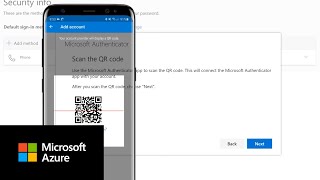
- Microsoft will display a QR code on the screen. This code contains the secret key that the Authenticator app needs.
Copy or Display the QR Code
The QR code is visible only for a short period. Do not close the browser window until you have successfully scanned it with the app. If you need to pause, look for a Refresh or Show again button that will regenerate the code.
Scanning the QR Code with Microsoft Authenticator
Now that the QR code is on your screen, you can link it to the Microsoft Authenticator app on your mobile device.
Install the App
- Visit the iOS App Store or Google Play Store.
- Search for Microsoft Authenticator and install the official app published by Microsoft Corporation.
- Open the app after installation completes.
Add an Account
- Tap the + (plus) icon or the Add account button within the app.
- Select Work or school account if you are using a corporate Microsoft 365 account, or choose Personal account for a standard Outlook.com address.
- When prompted, point your device’s camera at the QR code displayed on the computer screen.
- The app will automatically read the code and create a new entry showing a six‑digit code that refreshes every 30 seconds.
- Confirm the addition by entering the displayed six‑digit code back on the Microsoft website to verify that the link works.
Common Issues and How to Fix Them
Even with a straightforward process, users sometimes encounter obstacles. Below are typical problems and practical solutions.
QR Code Not Visible
- Make sure your browser window is not zoomed out too far; a QR code needs a clear, unobstructed view.
- Disable any browser extensions that block images or scripts, as they may prevent the code from rendering.
- If the code still does not appear, log out and log back in, then navigate to the security settings again.
Scanner Fails to Read
- Clean the camera lens on your phone; smudges can distort the image.
- Ensure adequate lighting and hold the


![How To Setup Microsoft Authenticator App! [2024]](https://i.ytimg.com/vi/YE6WL_D3Duc/mqdefault.jpg)